
See everything they buy and sell.
Showroom is The Village School's own marketplace. As a parent you can buy, follow your child and back the student shops, with your own page for every order and payout.
Leave your email and we will let you in as a parent.
- 01You confirm before they sell
- 02Your own view of every order
- 03Money held until it changes hands
- 04School IDs deleted within 7 days
What happens, step by step
The same screens your child uses. Nothing happens off the app.
Every listing is read by a person before it goes up, with real photos and the seller's name.
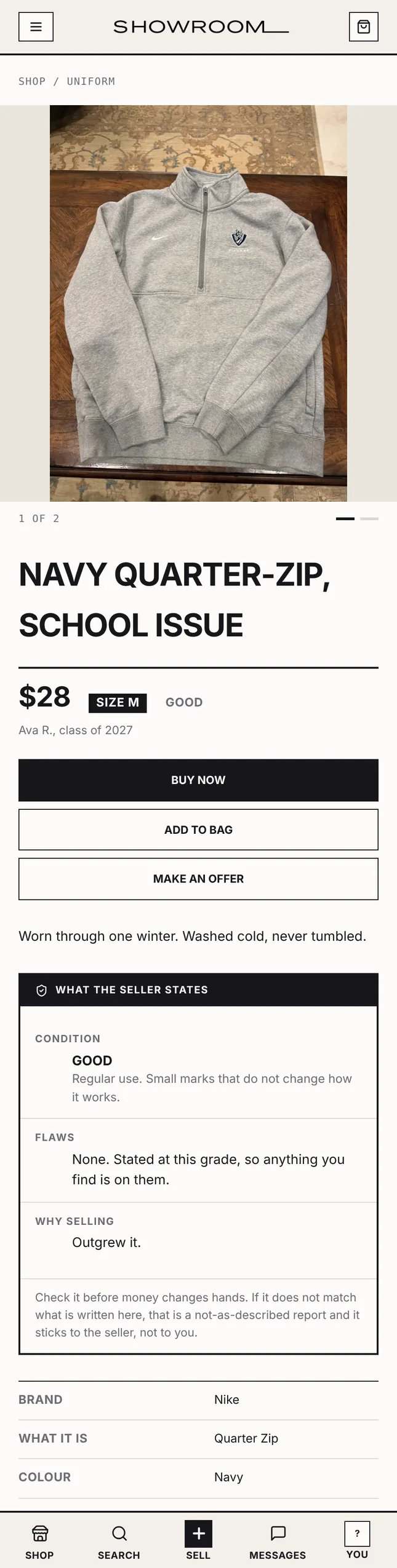


Real Showroom screens. The names and items are examples.
- 1Your child adds your emailThey do it when they set up selling. You get one email from Showroom.
- 2Tap ConfirmIt signs you in, no password, and shows you who you are confirming.
- 3Watch from your pageEvery sale, order and payout, with an email when something sells.
Is it only students from the school?
Yes. Students and staff come in with a school email. A parent comes in through their child's invitation, or is checked by a person first. Nobody else gets in.
How does the money work?
A buyer's card is held when they order and only charged once staff have checked the item. Sellers are paid through Stripe after the buyer collects.
Can staff read my child's messages?
No. A chat is only opened to staff if one of the two people in it reports it.
What happens to the school ID photo?
Sellers show a school ID once so staff can check it is them. The photo is deleted within 7 days.
Can I remove the link later?
Yes, from your page at any time. Your child then cannot sell until a parent confirms again.
Be the first to see it.
Leave your email and we will let you in as a parent, usually within a school day.